Getting to know the interface
When you're in a meeting for the first time, the BBB interface can feel overwhelming. In reality it's strictly divided into three columns - once you grasp that, you'll find anything in seconds.
The three areas
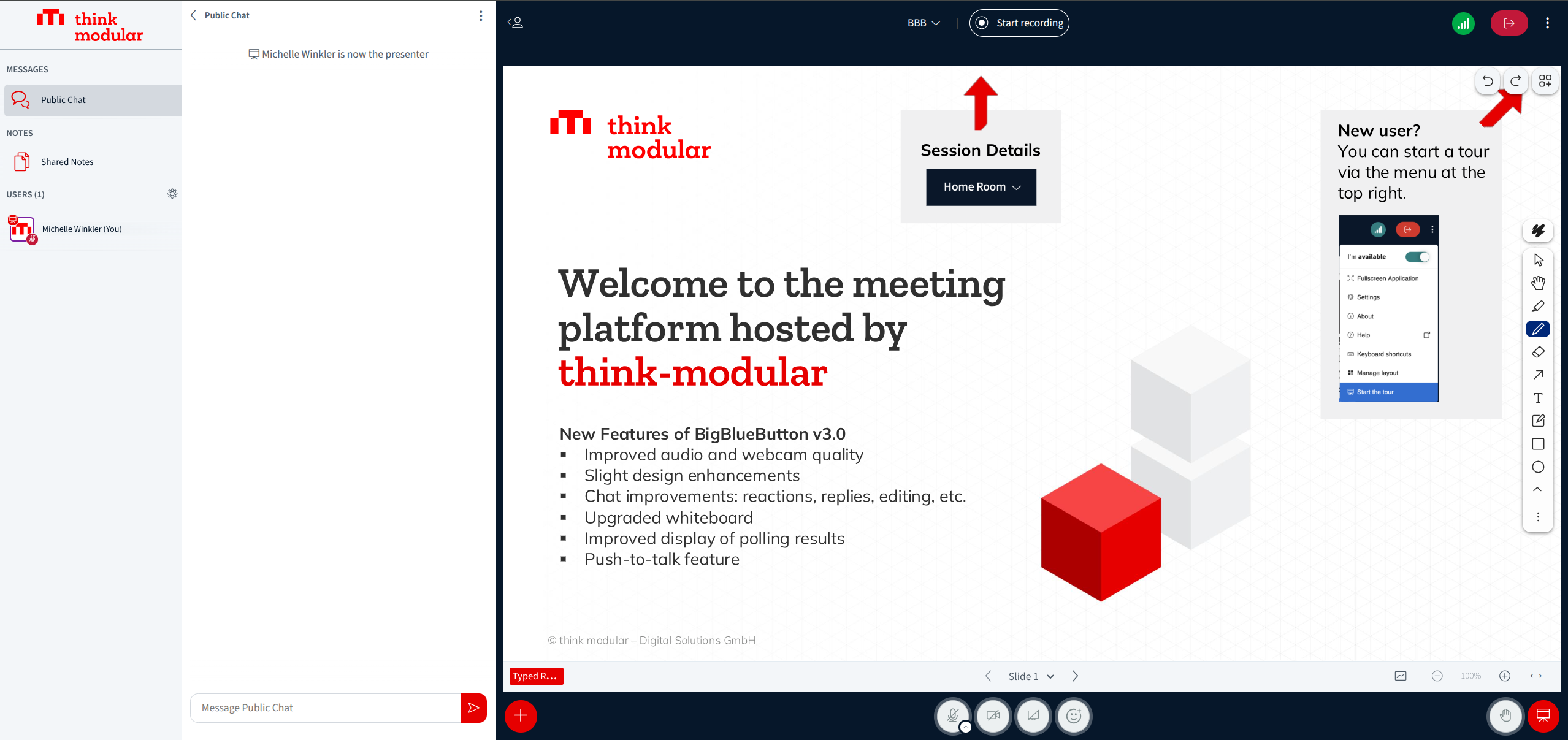
Left sidebar
Contains, stackable:
- Public chat - messages to everyone
- Shared notes - collaborative writing document
- Participants list - who's present, with status (hand, reaction, away)
- Raised hands list (since BBB 3.0) - overview of all currently raised hands
You can collapse and expand the sidebar via the icon at the top left.
Center area
Where the action happens:
- Slides of the currently presented file
- Whiteboard with drawing tools on the right edge
- Shared screen (when someone shares their screen)
- External video (YouTube, Vimeo etc., when embedded by the moderator)
- Webcams of participants (position configurable via layout)
Right sidebar
Optional - appears only when actively used:
- Private chat - direct messages with one person
- Extended tools - depending on the layout
The bottom control bar
In the lower center you see a bar with buttons. From left to right (default):
| Icon | Function |
|---|---|
| 🎤 Microphone | Mute / unmute |
| 🎧 Headset | Leave audio / rejoin |
| 📹 Camera | Webcam on / off |
| 🖥️ Screen | Screen sharing (presenter only) |
| 😀 Reaction | Emoji reaction (👍, 👏, ❤️, 😂, ...) |
| ✋ Hand | Raise / lower hand |
Next to the slides there are additional navigation buttons (<, >, slide picker, fullscreen).
Switching layouts
BBB 3.0 ships with several layouts that control the ratio between webcams and presentation:
- Smart Layout (default) - BBB decides automatically
- Custom Layout - drag cams and slides into place
- Presentation Focus - slides big, cams small
- Video Focus - cams big, slides small
- Cameras Only - only webcams, no slides
- Participants and Chat Only - for pure listening
How to switch:
- Click the gear icon at the top right
- Choose Layout settings
- Pick one
Moderators can set the layout for everyone at once (push layout).
Fullscreen & focus modes
- Slide fullscreen: click the fullscreen icon on the presentation (top right above it)
- Webcam fullscreen: hover over the webcam → fullscreen icon
- Browser fullscreen:
F11(Windows/Linux),Ctrl+Cmd+F(Mac)
Keyboard navigation (selected)
| Action | Windows/Linux | Mac |
|---|---|---|
| Toggle participants list | Alt + U | Ctrl + Option + U |
| Open chat (with list open) | Alt + P | Ctrl + Option + P |
| Raise/lower hand | Alt + R | Ctrl + Option + R |
| Next slide (presenter) | → | → |
| Previous slide (presenter) | ← | ← |
You'll find the full list in BBB under Options → Keyboard shortcuts.
Dark mode & font size
Under Options → Settings → Appearance:
- Toggle dark mode
- Adjust font size (application & captions)
- Reduce animations (helpful for motion sensitivity)
Next chapter: Chat, reactions & raise hand - how to participate actively without constantly grabbing the floor.